FAQ M-APP | Android
Digital pass
If you have purchased a digital PASS, or if you have digitised your plastic card via the app, you can visit the member site by showing your smartphone with the ‘My PASS’ page open in the app. Please note: once a plastic card has been digitised, it can no longer be used.
The digital PASS can only be used via the Museums-PASS-Musées app. The Apple Store guarantees that the app will work properly only on iOS17 and later. The Play Store guarantees that the app will work properly on Android version 10 and later.
A photo is required. It can be taken or uploaded from your smartphone.
If you have purchased a plastic card and have digitised it, you can no longer deactivate it and use your plastic card. If you purchase a digital PASS, you cannot convert it into a plastic card.
You cannot use the digital PASS on multiple smartphones at the same time. Only the last device you logged into will allow you to access member sites using a valid QR code. To ensure the digital PASS works reliably, we recommend that you avoid logging in repeatedly on different devices.
- Make sure that the smartphone you are using is the one that was last connected (e.g. if you have changed your phone). If not, log out and log back in.
- If the museum scans your QR code using a smartphone-type device (Famoco), ask the museum to synchronise the phone.
- Also make sure your smartphone is set to ‘automatic time’, as the QR code is dynamic and the time is important for it to be read.
- On Android: go to ‘Settings’, then find ‘Date & Time’ and enable ‘Automatic time zone’
- On iOS: go to ‘Settings’, then ‘General’, then ‘Date & Time’ and enable ‘Set automatically’.
You can buy a digital PASS in our online shop. It is not possible to buy a digital PASS in a museum. However, you can buy a plastic card and digitise you PASS in the app to use it in yuur smartphone.
You can renew you digital PASS in a member site, via the ‘My Account’ section of the app, in the or the online shop.
Once the photo has been approved, it cannot be changed. For any changes, please contact us by email: info@passmusees.com
Click on the ‘Refresh local data’ link in the ‘Info’ section of the menu. If refreshing the data hasn’t worked when you return to the My PASS page, you will need to log out (My Account / Log out) and log back in.
If you remain logged in to the app, the ‘MY PASS’ menu will still be available offline. Remember to log in before crossing the border.
For security reasons, screenshots are not accepted for entry into a museum. You must present the “MY PASS” page of the app.
We recommend offering a plastic card. The holder can then choose whether to use the card or digitise their PASS.
You can contact us by email at info@passmusees.com, providing us with your digital PASS number and your plastic card number.
Simply download the Museums-PASS-Musées app onto your new smartphone and log in to your account, making sure to change your password (via the ‘Forgotten your password?’ link on the My PASS page). Once you’ve logged in on this new device, your digital PASS will simply no longer work on your old phone.
User account
Your user account contains all the information relating to your Museums-PASS-Musées (personal details, password) and gives you access to the renewal service and the ‘Passholders recruit Passholders’ scheme. You can also set up automatic notifications via your user account to remind you when your PASS is due to expire.
If you are having difficulty creating your user account or logging in, you can try:
- closing the app completely and reopening it,
- uninstalling the app and reinstalling it.
Your login details consist of a username – which is not necessarily your email address – and a password. If you cannot remember your username, please contact us via the contact form.
If you have forgotten your password, click on ‘Forgotten your password?’.
For any other error messages, please contact us via the contact form.Your user account contains all the information relating to your Museums-PASS-Musées (personal details, password) and gives you access to the renewal service and the ‘Passholders recruit Passholders’ scheme. You can also set up automatic notifications via your user account to remind you when your PASS is due to expire.
App - Introduction / Features
Yes, all the museums listed in the app can be visited free of charge with the Museums-PASS-Musées.
The list of museums can be viewed on a map by tapping the ‘Show on map’ button.
Map view: you can search for museums based on a specific location on the map. Thanks to geolocation, you can easily view museums located near your current position.
Geolocation: if you have enabled it, you will see your location on the map as a blue dot. If you have declined this, you can change this setting on your smartphone under:
- iOS: Settings > Apps > PASS Musées app > Location > ‘Always’ or ‘Whilst using the app’.
- Android: Settings > Apps > Museums-PASS-Musées > Permissions > Location
The ‘Search’ tab in the menu allows you to find museums, exhibitions and museum events.
The yellow button at the bottom right of the list allows you to switch to map view and vice versa. In both cases, you can refine your search using the following criteria:
- ‘Near me’: this button allows you to find museums ‘near me’ on the map, but only if you have enabled location services*. Otherwise, it displays a list – in alphabetical order – of museums, exhibitions and events, or a list of the towns and cities in which they are located.
*If you have disabled location services, you can change this setting on your smartphone as follows:
For iOS: Settings > Apps > Museums-PASS App > Location > ‘Always’ or ‘Whilst using the app’.
For Android: Settings > Apps > Museums-PASS-Musées > Permissions > Location
- Search bar: allows you to carry out a precise search by name (museums, city, etc.)
- Museums / Exhibitions / Events tabs: you can also search via these tabs.
- ‘Filters’: whether in list view or map view, you can filter your search by theme and by country.
- ‘Favourites’ feature: this allows you to save the museums, exhibitions and events you wish to keep track of. Please note: if you uninstall the app from your smartphone, your favourites will be deleted.
The ‘favourites’ feature allows you to save museums, exhibitions and events that you’d like to keep track of. If you uninstall the app from your smartphone, your favourites will be deleted.
To do so, click on the heart icon at the bottom right, before the turquise background, of the detail page of the offer you want to add as a favourite.
If you’re using the calendar built into your smartphone and you’re on the page for a museum, exhibition or event, you can save it by tapping the ‘calendar’ icon at the bottom of the page.
For museums and exhibitions, when you want to save something, the smartphone calendar shows today's date. You can change this to the day you want to visit the museum or exhibition simply by clicking on the date.
If it's an event, it's timed to the day of the event. If it is a series of events, it is scheduled for the first day of the series. You can of course adjust the date in the same way as for museums and exhibitions.
In the ‘Info’ tab in the menu at the bottom right, you can change your push notification settings and the language.
On iOS (Apple), to change the language: go to the ‘Info’ page in the app, then tap the ‘Settings’ link at the bottom of the page.
Museums are categorised into different groups. These can also be accessed via the ‘Filters’ button at the top right of the museums/exhibitions/events search page.
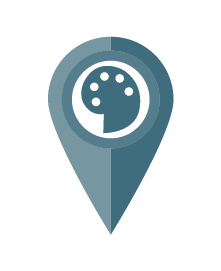
Art
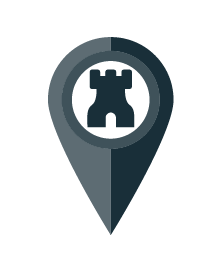
Castles and gardens
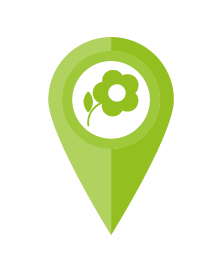
Nature and environment

Technique and Industry
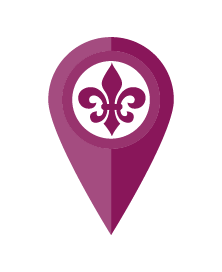
History and tradition
Other
Here you’ll find exclusive Museums-PASS-Musées offers: special evening events, online events, promotional offers, competitions…
Technical questions
If the app freezes, you can close it and reopen it.
On Android, you can also force-close the app in your smartphone’s settings by going to ‘Settings’ > ‘Apps’ > ‘Museums-PASS-Musées’ and tapping ‘Force stop’.
If the app crashes frequently, it may not be compatible with your operating system version.
On Apple devices, iOS 17 or a newer version is required.
On Android devices, Android 10 or a newer version is required.
You can also try uninstalling and reinstalling the app. Please note that reinstalling the app will result in the loss of your favourites.
There is no ‘home’ button in the app. If you have opened detailed pages for museums, exhibitions or events, you can close them by clicking on the X in the top right-hand corner to return to the previous page.
If you wish to switch from the map to the list, or vice versa, you can do so using the yellow button in the bottom right-hand corner.
Either drag the screen with two fingers to zoom in on the map. Or, double-click on the blue dots with the number representing several museums.
Regarding the detailed pages for museums, exhibitions and events, your favourites list and the calendar feature: these are accessible offline but the information will only be up to date if your phone is connected to the internet overnight, when the server is updated every 24 hours.
Regarding access to the information and features contained in ‘My PASS’: these are accessible offline, provided, however, that you have navigated through the app’s menu by tapping the ‘My PASS’ tab at least once whilst connected to the internet, in order to trigger the data update.
This is possible, but only one at a time, not simultaneously, and it is not recommended. If you have a digital PASS, it is only valid on one device at a time. Please note: The favourites list cannot be synchronised when switching devices.
You can hide the keyboard by clicking on "Enter" / "OK" at the bottom right of the keyboard.
You can close the filter simply by pressing on the cut-out between the top menu and the map.
Or by sliding the window with the filters downwards.
Some museums have 2 icons, for example "Art" and "History and Tradition". If you have filtered by "History and Tradition", you may still see a few museums on the map that are shown with the "Art" icon. This is because the map always shows the first of the two categories, i.e. the predominant category.
You don't have to confirm anything! Just close the filter window and the filter will be applied to your search.
Contact
MUSEUMS-PASS-MUSÉES
Birsigstrasse 2
CH-4054 Basel
T (CH) : 061 205 00 40
T (DE) : 07621 161 36 34
T (FR) : 03 89 33 96 29
info@museumspass.com